
What’s the Seller Labs Amazon MCP — and why does it matter?
Think of the MCP Server as the bridge between your Amazon data and Claude.
It lets your AI assistant access real-time business data — safely and securely — without needing your Amazon login.
With the MCP Server connected, you can ask Claude questions like:
-
“What SKUs dropped in profit last week?”
-
“Which keywords are driving the most conversions this month?”
-
“How did my ad spend impact margin across top ASINs?”
Claude will instantly pull the data, analyze it, and give you clear answers — with charts, summaries, or SQL-style results if needed.
Beyond data analysis, the MCP also supports Sponsored Products campaign management — create, edit, pause, and optimize campaigns directly through your conversation with Claude. 🎬 Watch the announcement video
Before you start
-
An active MCP Genius or Genius Bundle subscription — the Seller Labs Amazon MCP is included with both
-
Your Amazon marketplace connected in Seller Labs
-
A Claude Pro or higher account, and you’re signed into your Seller Labs account in the same browser
⚙️ Step-by-Step: How to Connect the Seller Labs Amazon MCP to Claude
The whole setup takes about two minutes.
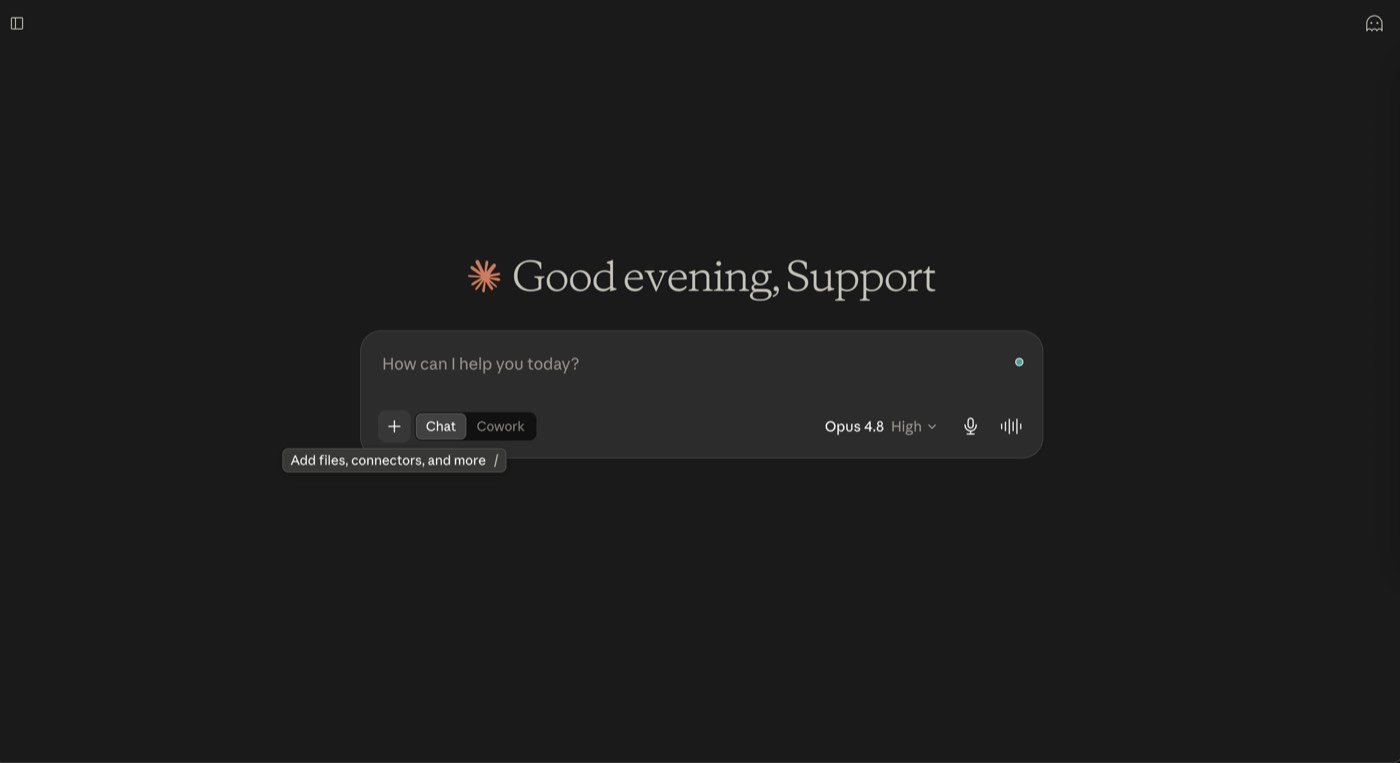
Step 1: Open the + menu in Claude
Start a new chat and click the + button below the message box — the one labelled Add files, connectors, and more.
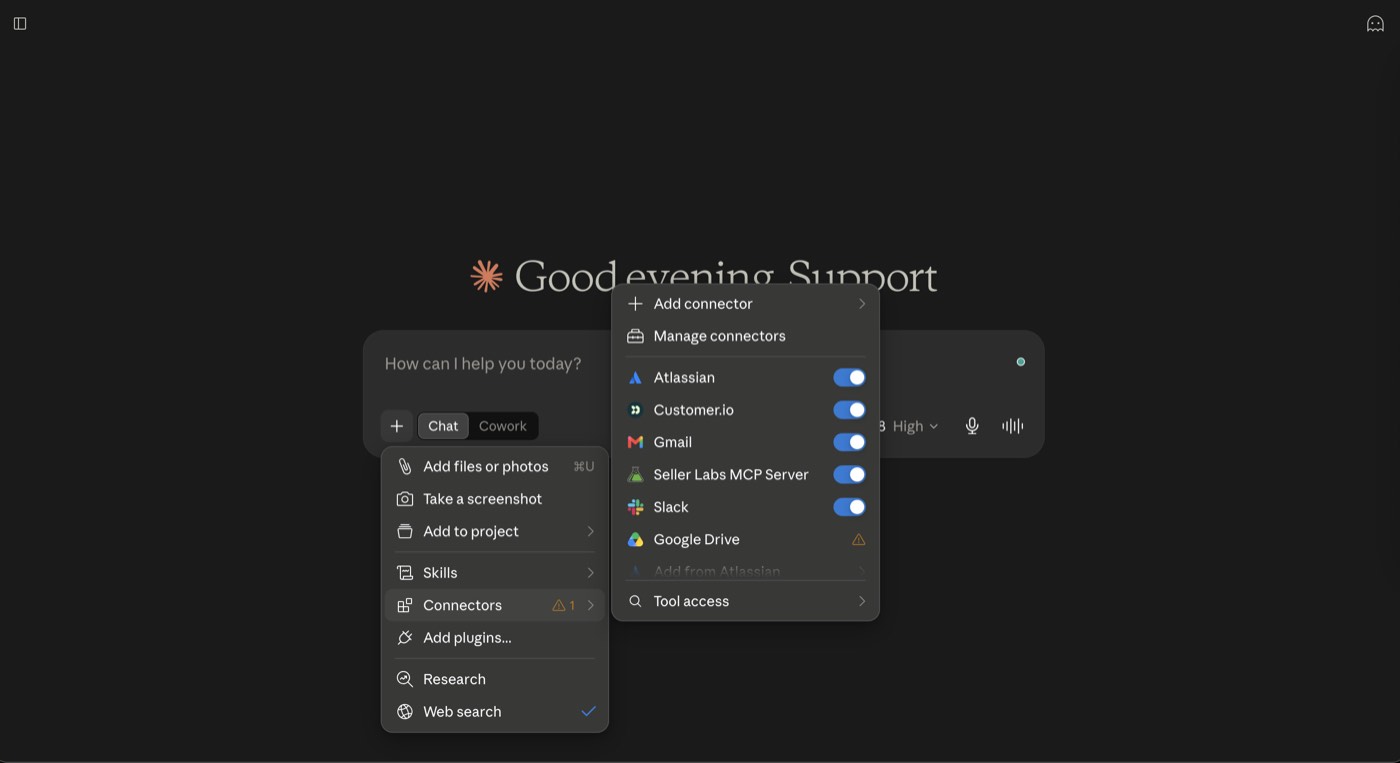
Step 2: Hover “Connectors”
The connector list opens alongside the menu.
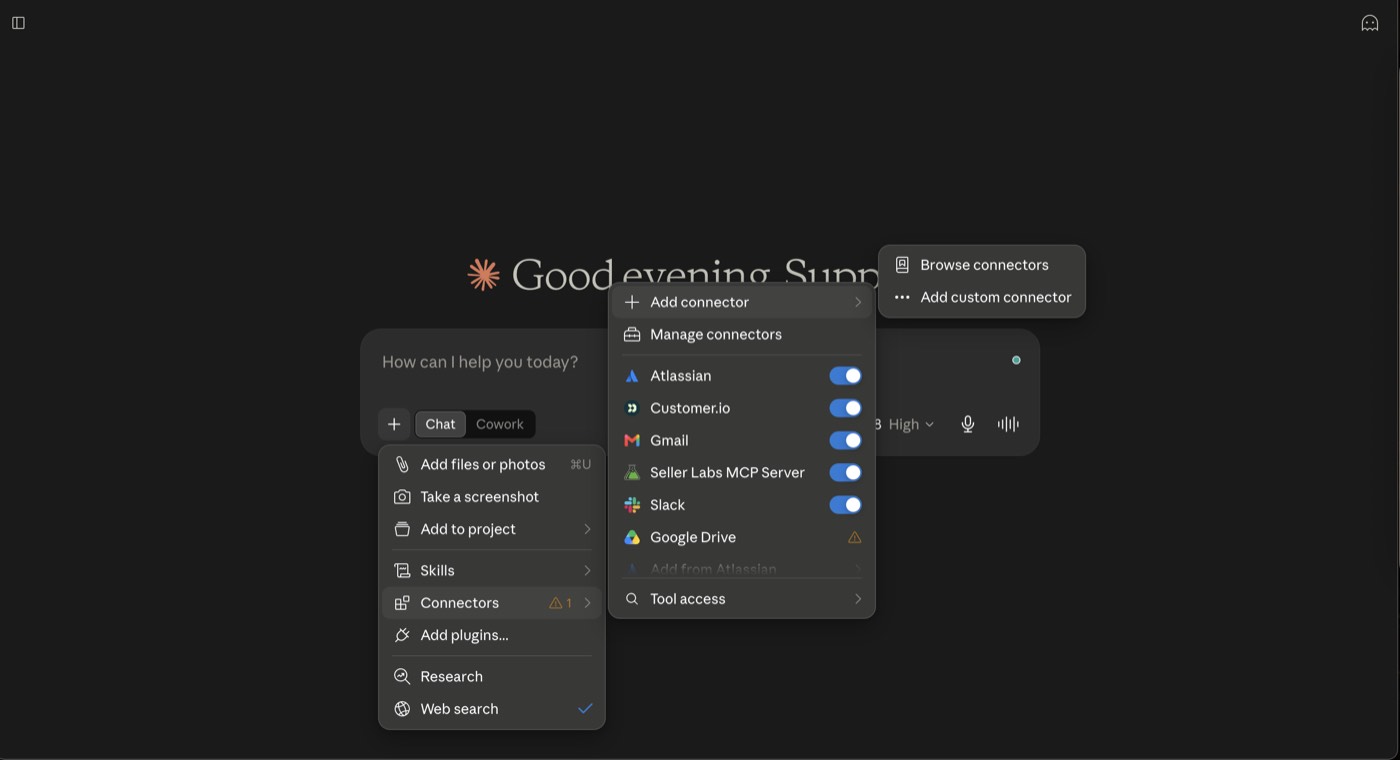
Step 3: Choose “Add custom connector”
Click Add connector, then Add custom connector.
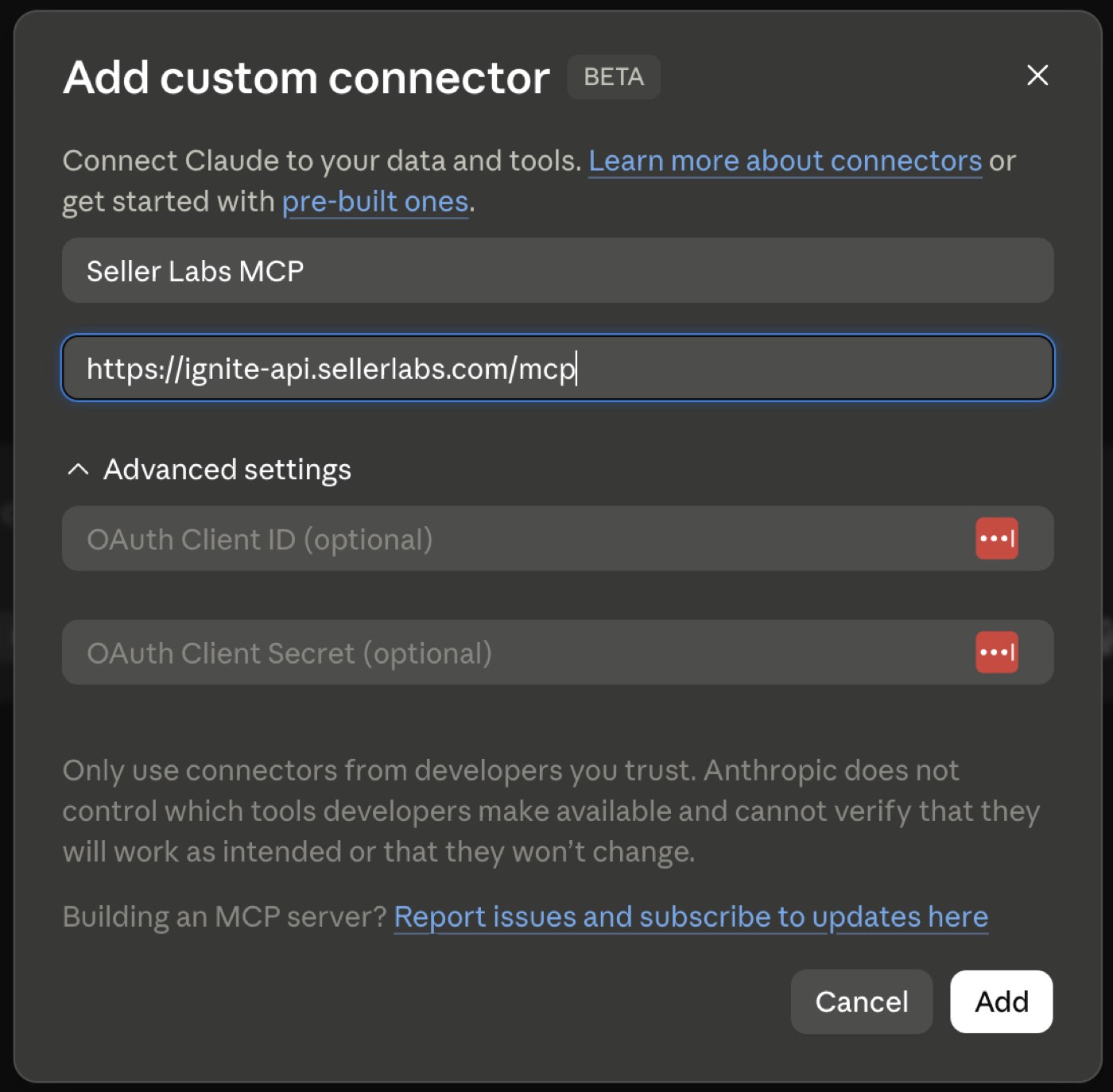
Step 4: Enter the MCP Server details
In the pop-up window:
-
Enter a Name: “Seller Labs Amazon MCP”
-
Paste this URL:
-
Click Add.
💡 Pro Tip: Leave Advanced settings alone — the OAuth Client ID and Secret fields are optional and you don’t need them.
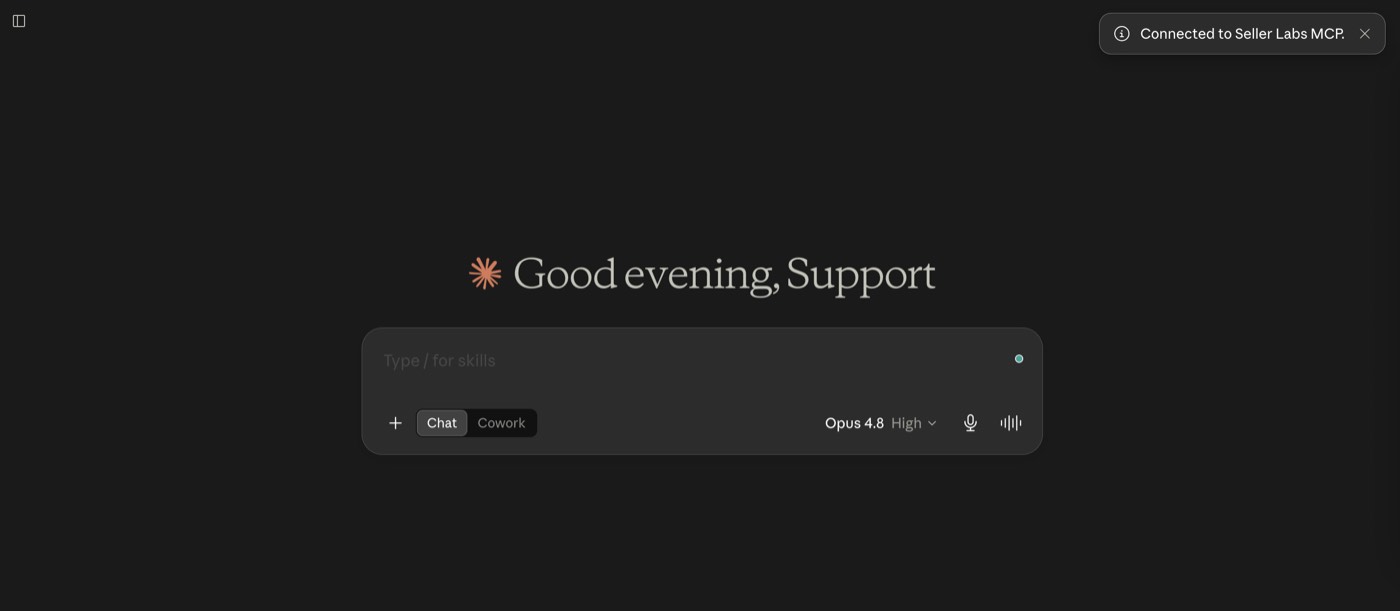
Step 5: You’re connected
Claude confirms with “Connected to Seller Labs Amazon MCP.” If a Seller Labs sign-in screen appears first, sign in with your Seller Labs credentials.
Step 6: Check it’s switched on
Back in + → Connectors, the connector should be toggled on. Claude lists it under the name the server reports, which can differ slightly from the name you typed.
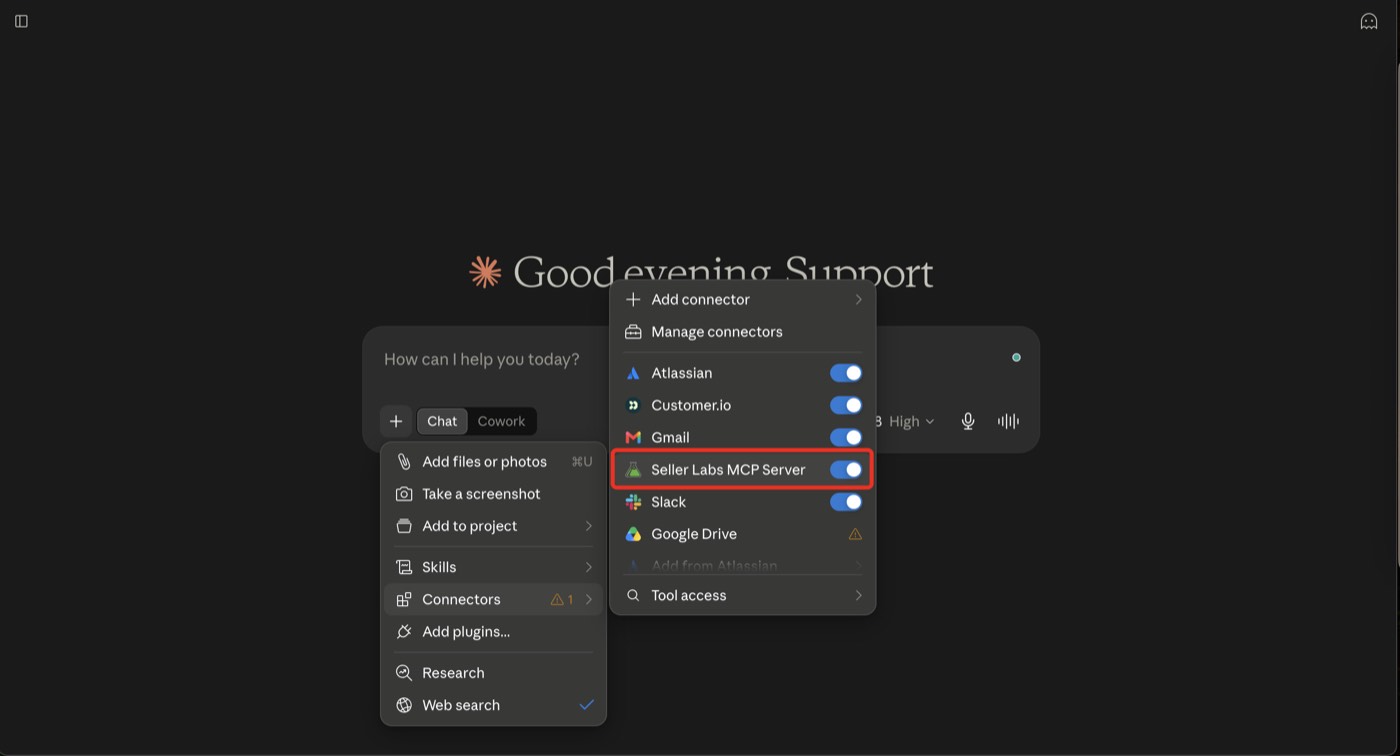
That means Claude is now securely linked to your Seller Labs data — and you’re ready to start asking data-driven questions!
✅ You’re All Set!
You can now ask Claude to pull reports, analyze metrics, and surface live insights — all powered by your Amazon data.
Example prompts to try:
-
“Show me my Amazon sales for the last 30 days.”
-
“Which products are trending down in conversion rate?”
-
“Summarize ad spend impact on profit this month.”
Want more? Check out our 76 Claude Prompts for Your Seller Labs Amazon MCP — copy-paste prompts for advertising, profitability, inventory, reviews, and more.
Need help? Our support team is happy to assist you!🙂
-
Connect via the in-app chat icon, located in the bottom-right of your screen while logged into any of our apps
-
Search the Knowledge Base to see if your question has already been answered
-
Make an appointment with us for more direct support
*No Credit Card Needed