Choose which brands Seller Labs collects Amazon Search Query Performance (SQP) data for in each marketplace. You can update your selections whenever you need to.
Before You Begin
Connect your Amazon marketplace to Seller Labs. Search Query Performance data is available for eligible brands, and the marketplace must have Amazon’s Brand Analytics permission. If the settings page displays a Brand Analytics warning, check the permissions for that marketplace in Amazon Seller Central.
Enable Data Collection
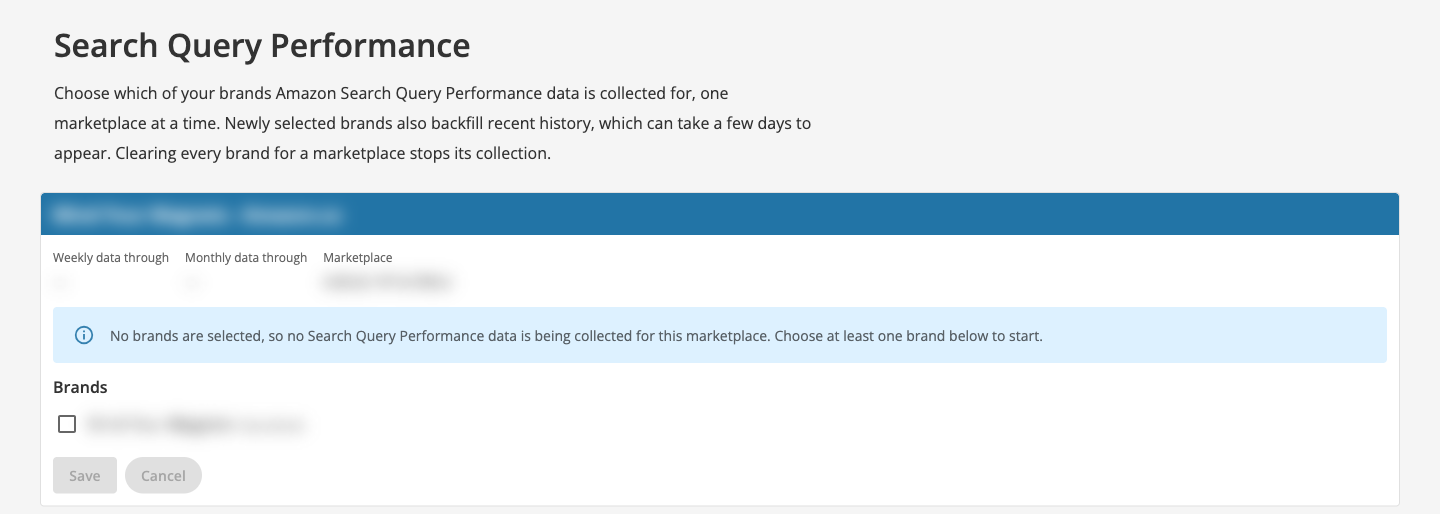
- Sign in to Seller Labs and open MCP Genius → Search Query Performance from the navigation menu. You can also open the Search Query Performance settings page directly.
- Find the marketplace you want to configure.
- Under Brands, select the checkbox next to each brand you want to collect data for.
- Click Save on that marketplace’s card.
- Repeat these steps for any other marketplaces you want to configure. Brand selections are saved separately for each marketplace.
When Will Data Appear?
Newly selected brands also receive a backfill of recent history. The page notes that this can take a few days to appear. The Weekly data through and Monthly data through fields on each marketplace card show the latest available periods.
If you don’t see data right away, allow time for the history to populate. If your brand or marketplace isn’t listed, or the page displays a permissions warning, contact our support team for help.
Change or Stop Collection
Return to the settings page, update the selected brands for the marketplace, and click Save. Clearing every selected brand for a marketplace stops Search Query Performance data collection for that marketplace.
Need help? Our support team is happy to assist you! 🙂
- Connect via the in-app chat icon, located in the bottom-right of your screen while logged into any of our apps.
- Search the Knowledge Base to see if your question has already been answered.
- Make an appointment with us for more direct support.
*No Credit Card Needed