
IMPORTANT NOTE: Seller Labs tools are tailored for Chrome browser and we cannot guarantee compatibility with other browsers!
🆙 Updating Google Chrome
Why this matters: An outdated browser can cause performance issues, display bugs, or security risks. Seller Labs tools require an up-to-date Chrome browser for full functionality.
Step-by-step Instructions:
-
Open Chrome.
-
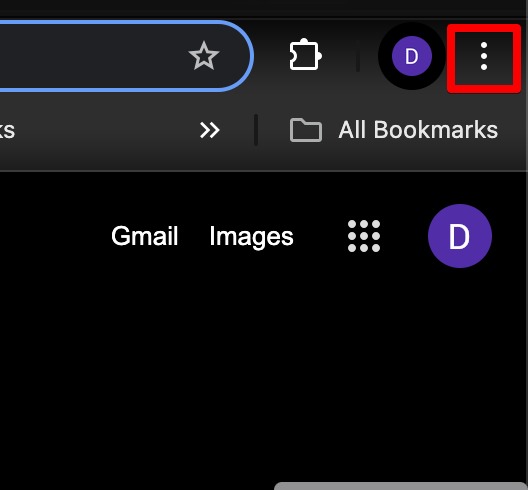
Click the three-dot menu in the top-right corner.
-
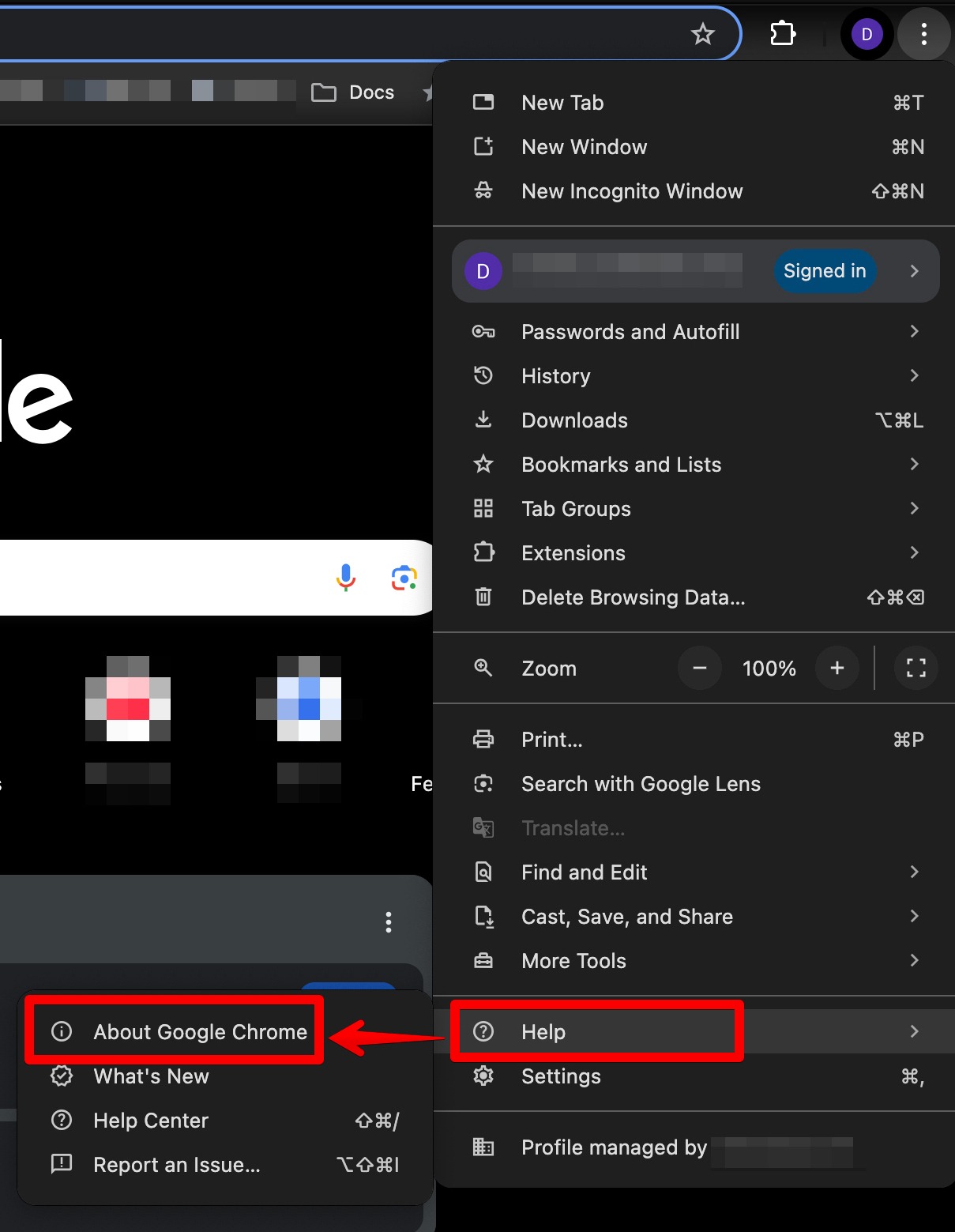
Go to Help > About Google Chrome.
-
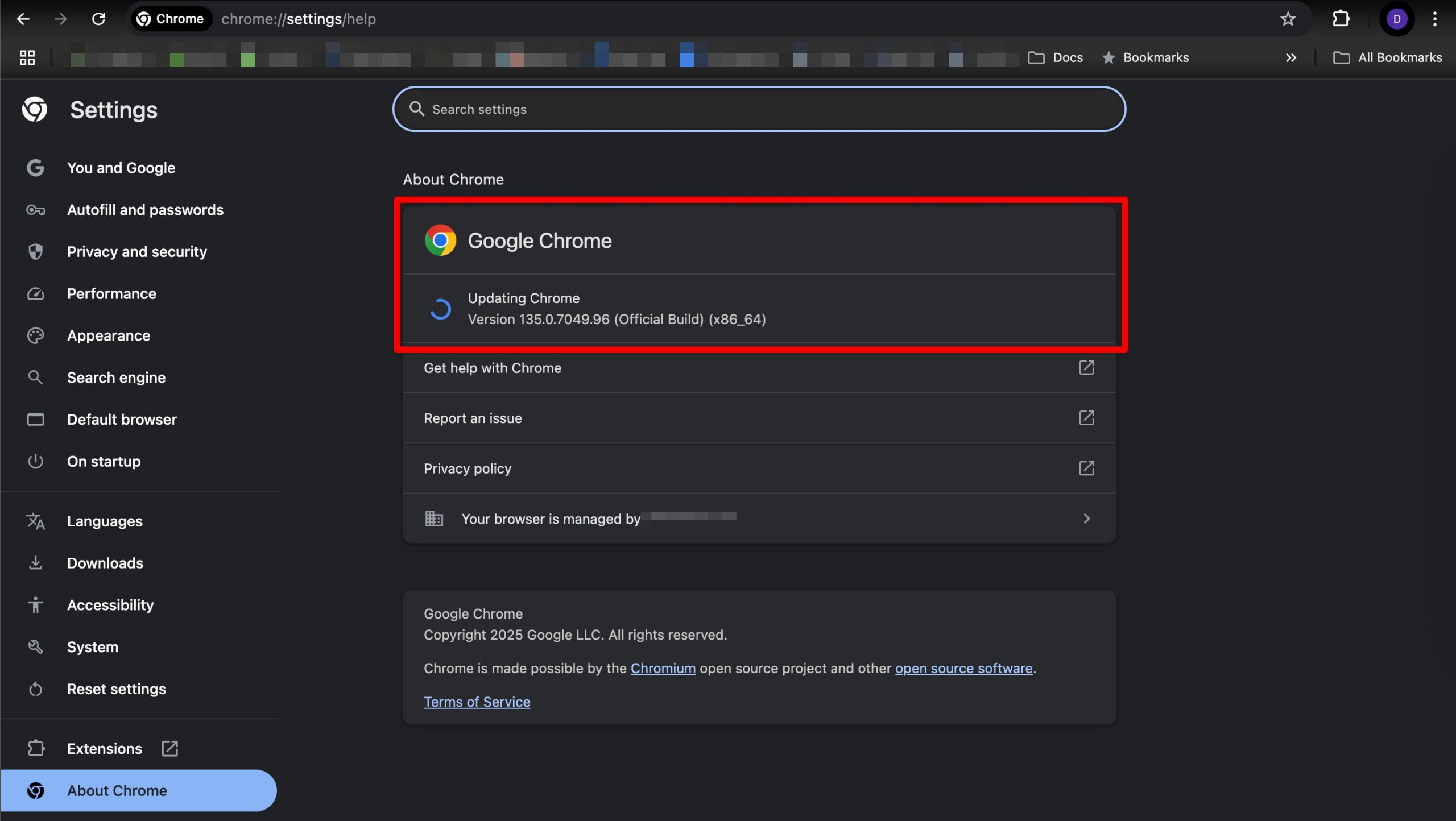
Chrome will check for updates automatically. If an update is available, it will download.
-
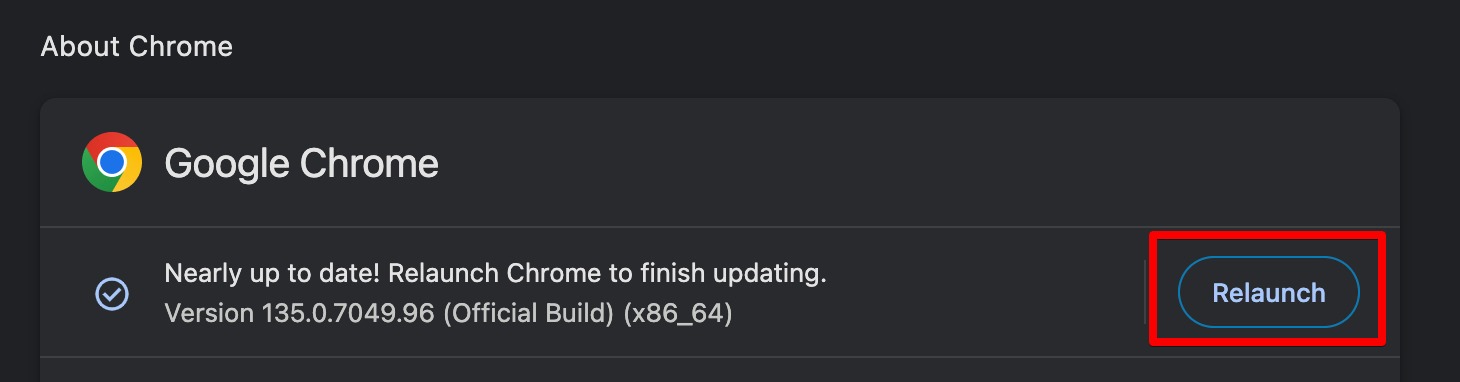
Once the update is complete, click “Relaunch” to apply it.
💡 Tip: You can also go to chrome://settings/help to access the update page directly.
🧹 Clearing Cache and Cookies
Why this matters: Cached files and cookies can store outdated data that may interfere with how Seller Labs tools operate.
Instructions:
-
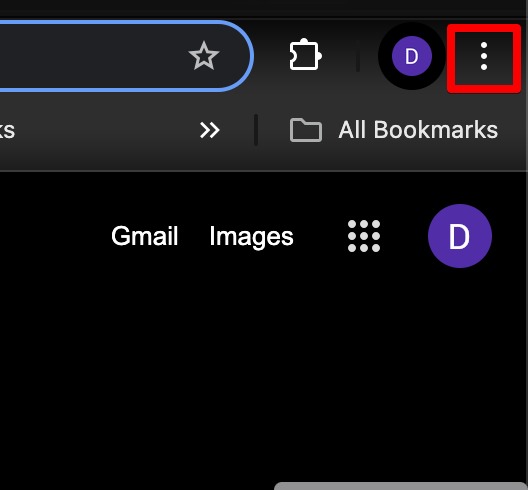
Click the three-dot menu in the top-right corner.
-
Select Settings.

-
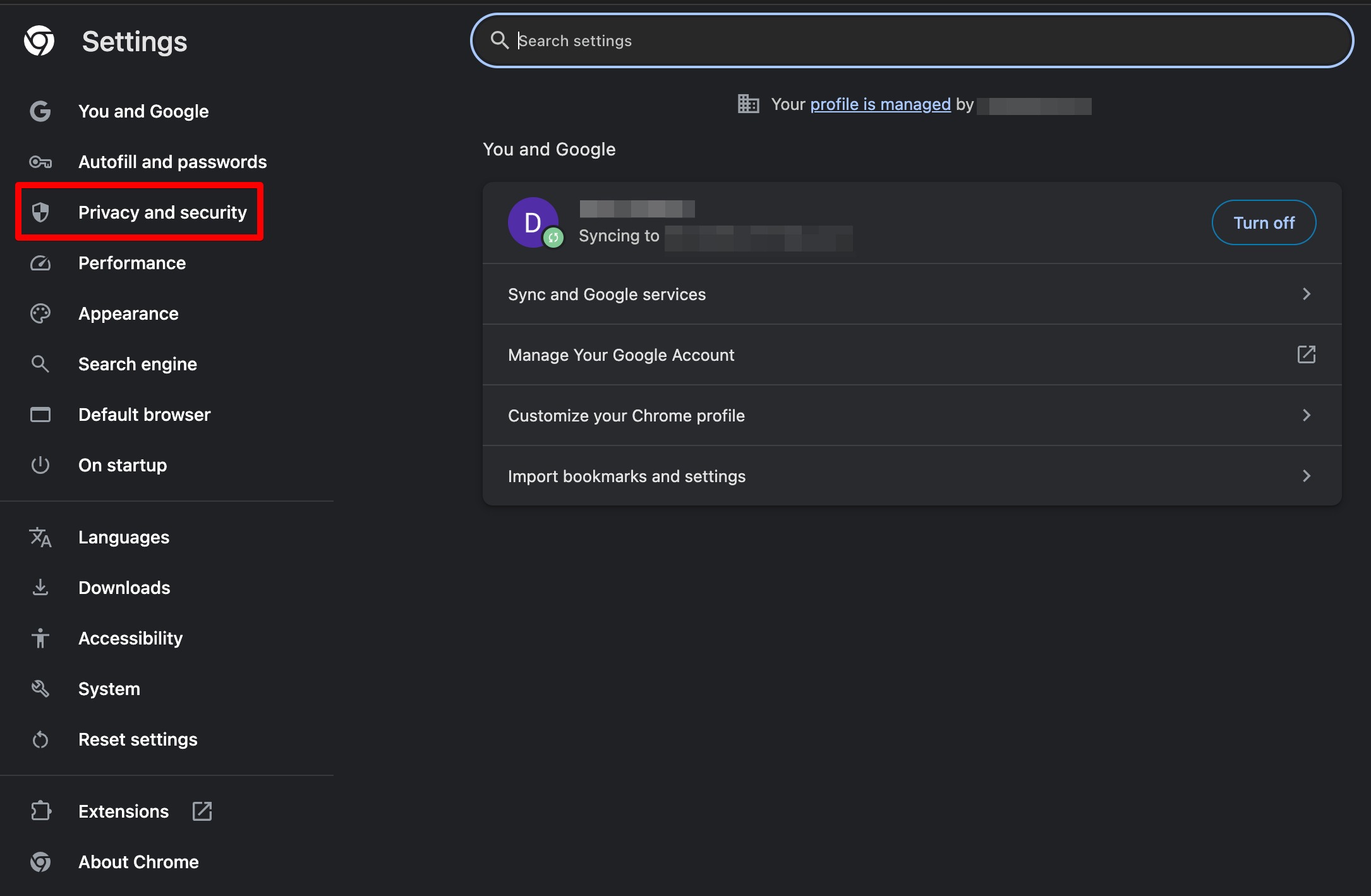
In the left sidebar, click Privacy and Security.
-
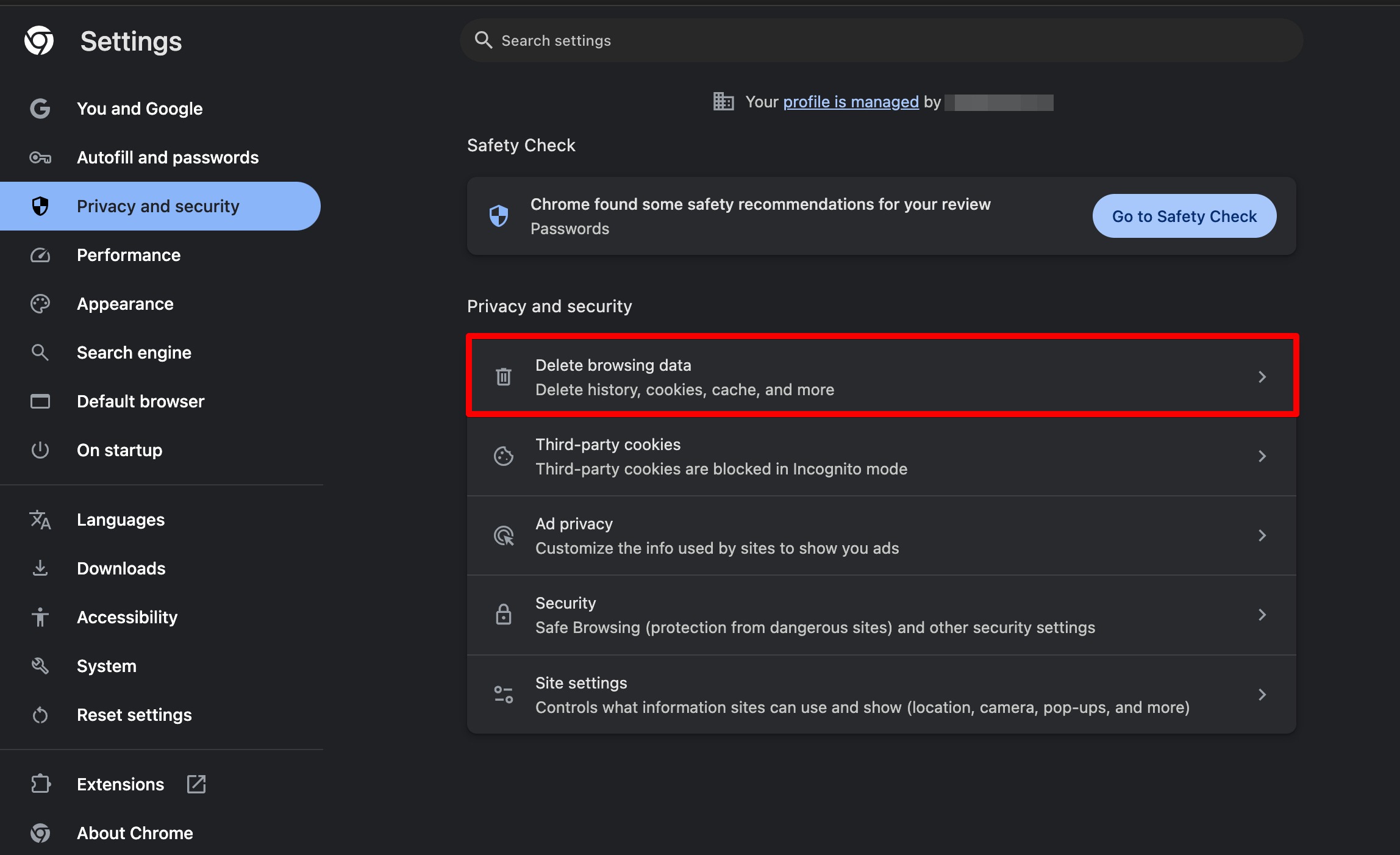
Click on Delete browsing data.
-
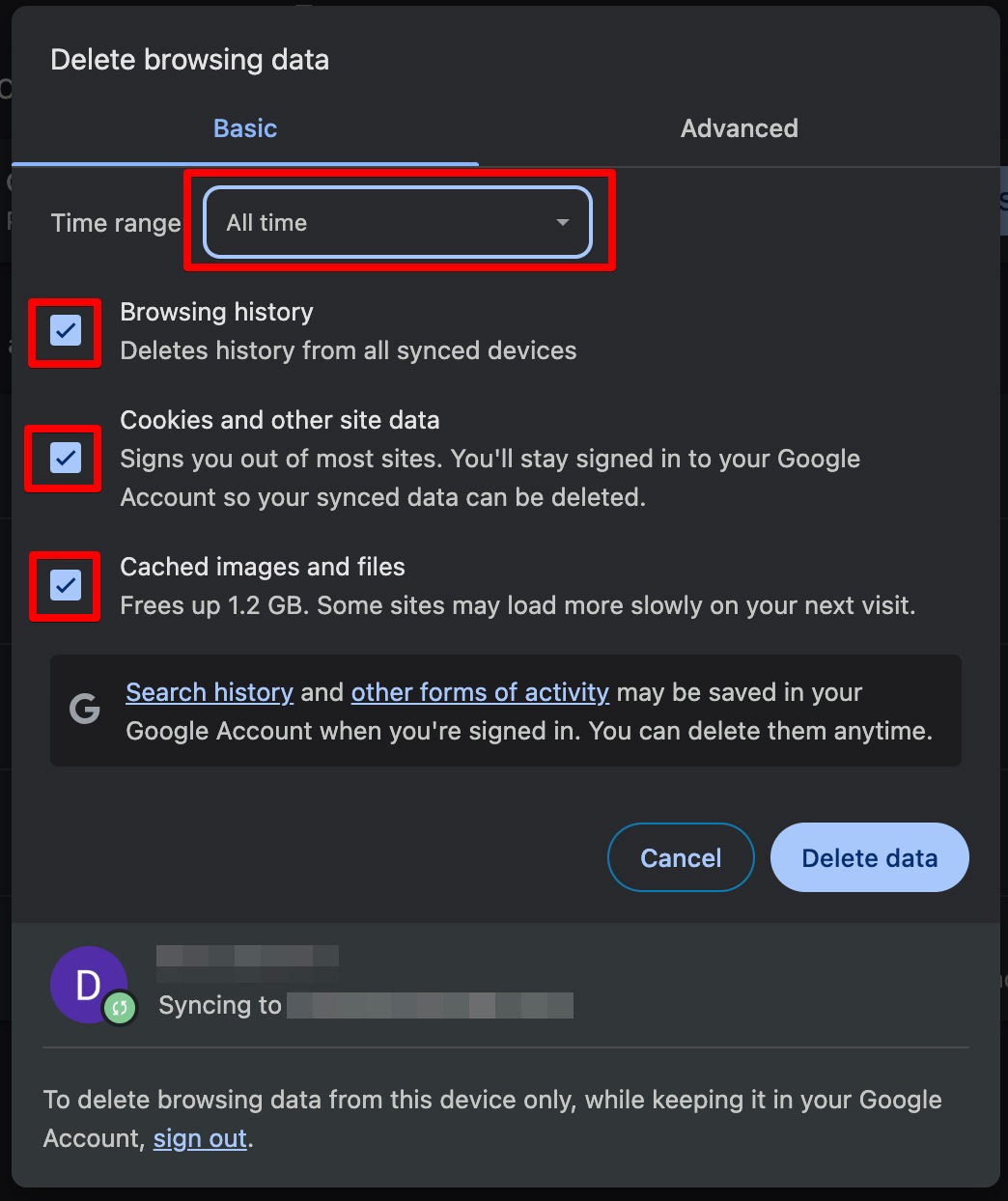
In the popup window:
-
Set Time range to All time
-
Check the boxes for Cookies and other site data and Cached images and files
-
-
Click Delete data.
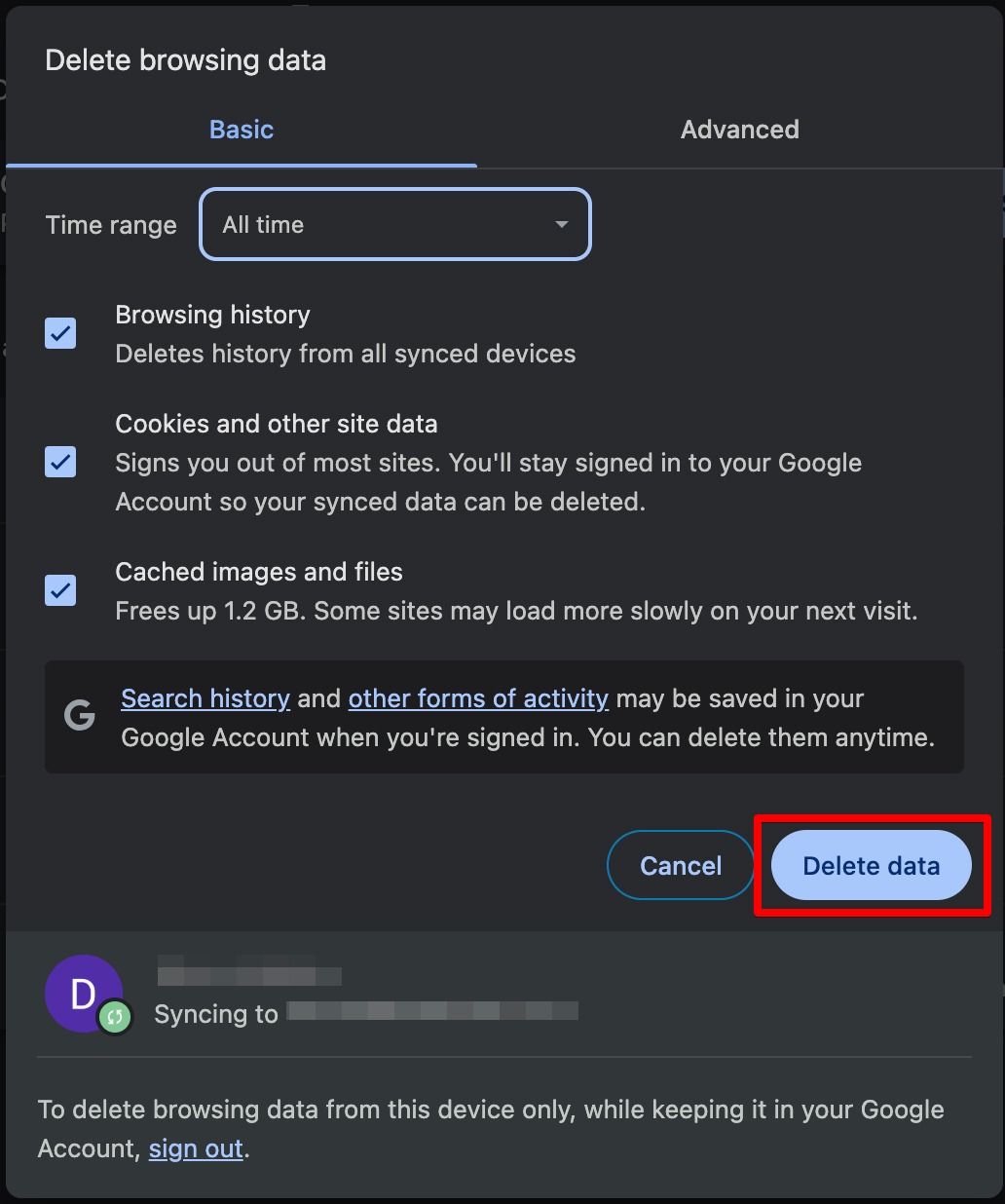
⚠️ Note: This will log you out of most sites, including Seller Labs. Ensure you have your login details ready.
🔁 Best Practices
-
Update Chrome every few weeks.
-
Clear cache and cookies when troubleshooting issues with Seller Labs tools.
-
Use Incognito mode or another browser to test if an issue is browser-specific.
Need help? Our support team is happy to assist you! 🙂
-
Connect via the in-app chat icon, located in the bottom-right of your screen while logged into any of our apps
-
Search the Knowledge Base to see if your question has already been answered
-
Make an appointment with us for more direct support
*No Credit Card Needed