
📗 Quick Reference Table
|
Issue |
Quick Fix |
|
Custom Messages Not Sending |
Check SP-API and activate messages |
|
Data Not Showing |
Confirm API & MySQL; update browser; clear cache |
|
Login Problems |
Reset password |
|
Missing Ad Data |
Confirm Ad API connection |
|
Data Discrepancies |
Contact support with screenshots |
📬 Custom Messages or RAR Not Sending
Steps to Troubleshoot:
-
Confirm that your SP-API connection is active.
Step 1: Click the menu icon (☰) in the top left corner.
Step 2: Select Marketplace Settings from the menu.
Step 3: Check the Selling Partner API section to confirm it shows “Connected.”
If it’s not connected, please refer to the Helpful Resources section below for guidance.
-
Verify that your RAR or Custom Messages are enabled.
Step 1: Click the menu icon (☰) in the top-left corner.
Step 2: Hover over Feedback Genius, then click on either Automated Request a Review or Custom Message.
Step 3: On the selected tab, check that the message is enabled.
For additional help, please refer to the Helpful Resources section below.
Helpful Resources:
📉 Data Not Displaying in the Dashboard
Steps to Troubleshoot:
-
Verify the SP-API connection is successfully established.
Step 1: Click the menu icon (☰) in the top left corner.
Step 2: Select Marketplace Settings from the menu.
Step 3: Check the Selling Partner API section to confirm it shows “Connected.”
If it’s not connected, please refer to the Helpful Resources section below for guidance.
-
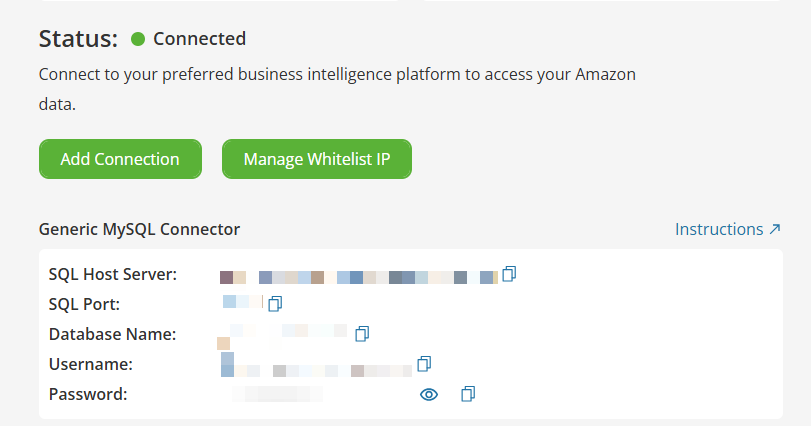
Confirm your Generic MySQL connection is active.
Step 1: Click the menu icon (☰) in the top-left corner.
Step 2: Hover over Profit Genius, then select the Data Hub tab from the menu.
Step 3: Check the connection status to ensure it displays “Connected.”If it’s not connected, please see the Helpful Resources section below for further instructions.
-
Update Google Chrome to the latest version.
Please refer to the Helpful Resources section below for a knowledge base article that provides a step-by-step guide on how to complete this process.
-
Clear your browser’s cache and cookies.
Please refer to the Helpful Resources section below for a knowledge base article that provides a step-by-step guide on how to complete this process.
Helpful Resources:
🔐 Login Issues
Steps to Troubleshoot:
-
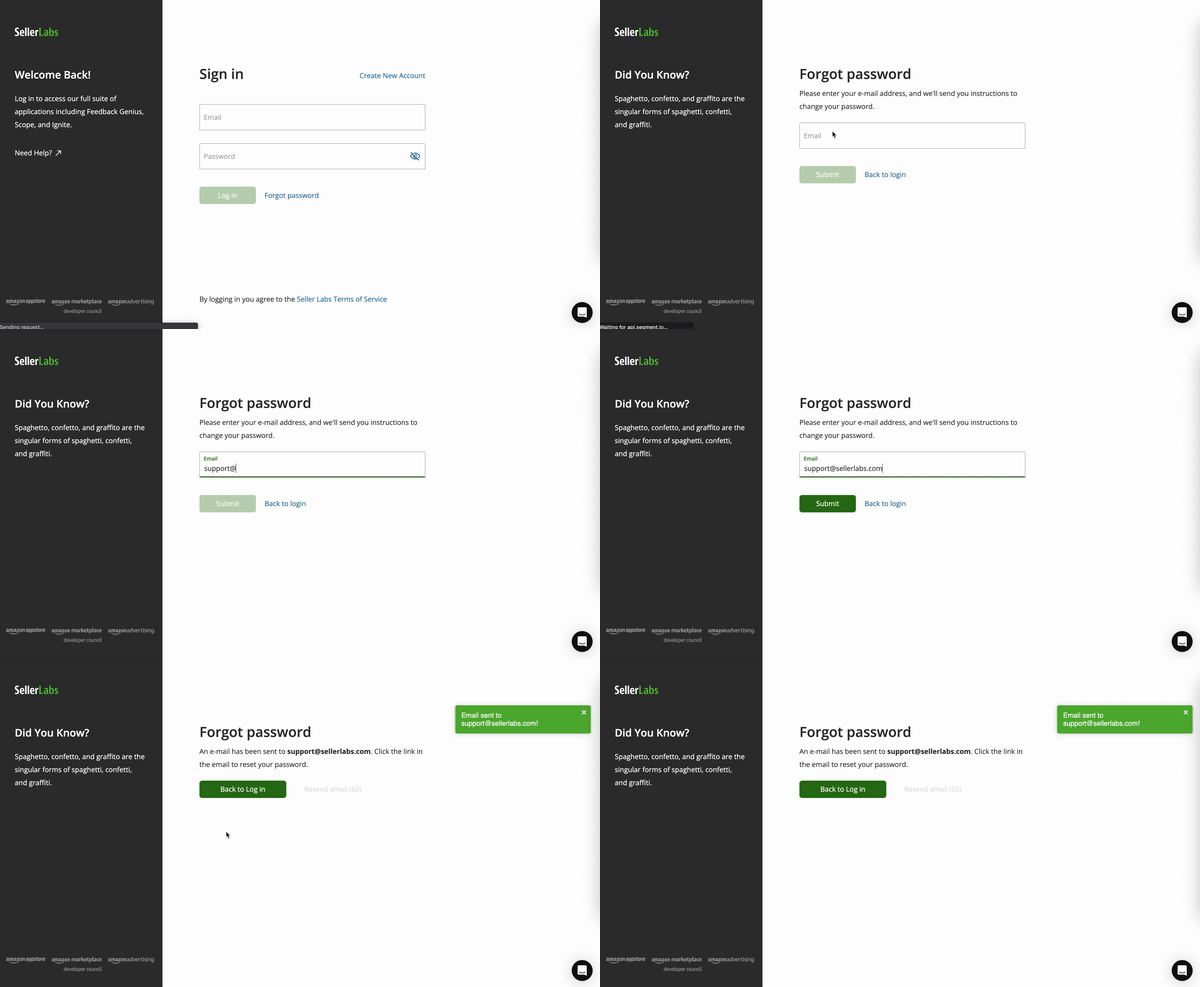
Double-check that your login credentials are correct.
-
Use the “Forgot Password” option to reset your password.
Helpful Resource:
📊 Advertising Data Not Displaying
Steps to Troubleshoot:
-
Ensure your Advertising API is connected.
Step 1: Click the menu icon (☰) in the top-left corner.
Step 2: From the menu, select Marketplace Settings.
Step 3: In the Advertising API section, verify that the status shows “Connected.”
If it’s not connected, please refer to the Helpful Resources section below for detailed guidance.
-
Log in to Amazon Campaign Manager to verify campaign access.
Step 1: Log in to Seller Central
-
Go to sellercentral.amazon.com and sign in with your Amazon seller credentials.
Step 2: Open the Advertising Menu
-
From the top menu bar, hover over “Advertising”.
Step 3: Select “Campaign Manager”
-
In the dropdown menu, click on “Campaign Manager.”
-
Helpful Resource:
📉 Data Discrepancies
Steps to Troubleshoot:
-
Contact the Customer Success team for assistance.
-
Include screenshots or screen recordings of both Seller Labs data and the source you are comparing it to.
🧭Need Further Help?
📝 When Reaching Out, Please Include:
-
A brief description of the issue
-
Any relevant screenshots or videos
-
The steps you took leading up to the issue
💬 Ways to Get Support:
-
In-App Chat
Click the chat icon in the bottom-right corner of any Seller Labs app. -
Knowledge Base
Search our Help Center to see if your question has already been answered. -
Book an Appointment
Schedule a session with our team for direct, personalized support.
We’re happy to help—don’t hesitate to reach out! 😊
*No Credit Card Needed